

















Face Time: How to Set Up a Smartwatch Face That Actually Helps You
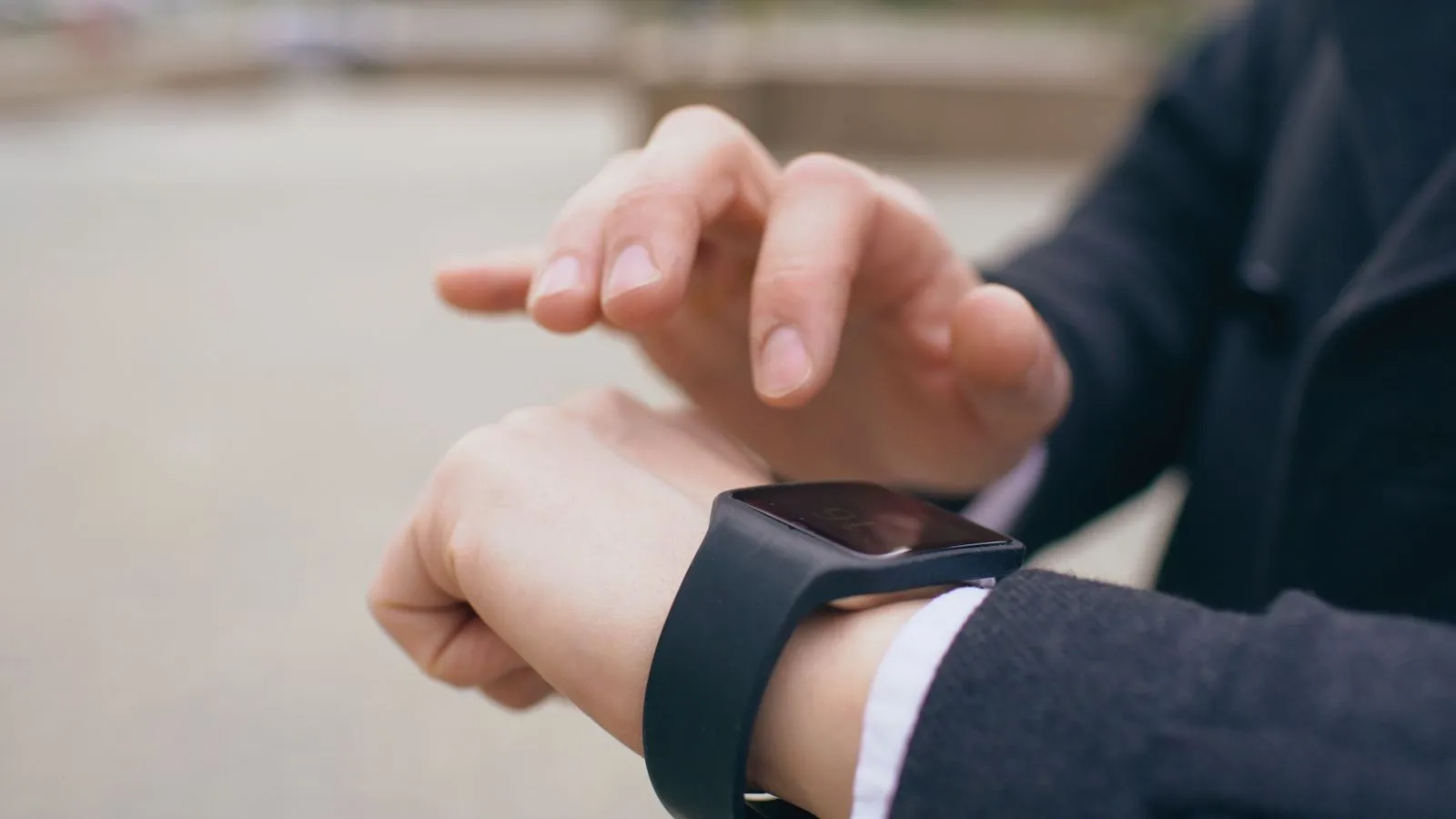
Namaste, wrist warriors. Dev Kamal here, Sailor Geek. Most of us set up a smartwatch once, pick a pretty face and never touch it again. But that little screen can be a personal dashboard that shows exactly what you need at a glance: your next meeting, the weather, your step count, the sunset time for your evening swim. Let’s customise yours like a pro.
What’s a Watch Face, Really?
The watch face is the main screen you see when you raise your wrist. Most smartwatches let you choose different designs and add small information boxes, often called complications, tiles or widgets. Each one shows a bit of live data from an app and opens it with a tap.
Where to Change It
- On the watch: on many models you press and hold the current face to edit it or swipe to switch.
- On your phone: the watch’s companion app usually has a gallery of faces and an easier editor with a bigger screen.
Menus differ between brands and software versions, so check your watch’s help pages if the options look different.
Start With Your Day
Before you start tapping, ask yourself: what do I look at my phone for most often? Those are your best complications. Popular choices:
- Calendar: next event and time.
- Weather: current temperature and the UV index for sunny days.
- Activity: steps, move rings or goals.
- Timer or stopwatch: handy for workouts and cooking.
- Sunrise and sunset: perfect for planning beach time and golden-hour walks.
- World clock: if you have friends or family in another time zone.
- Music controls: for the gym and the run.
- Battery: so you’re never caught out.
Make More Than One Face
The secret trick, darling: create a few faces for different moments and swipe between them.
- Work face: calendar, reminders, timer, clean and simple.
- Workout face: heart rate, activity, workout shortcut, music.
- Weekend face: weather, sunset, a photo of your friends or your favourite beach.
- Night face: a dim, minimal design with just the time and an alarm.
Some watches can switch faces automatically by time or location. Look for it in the settings or in your phone’s automation app.
Design Tips
- Less is more: three or four complications are easier to read than eight.
- Big time: keep the clock large and clear. It’s still a watch.
- Contrast: light text on a dark background is easier to read in bright sun, and often saves battery on many screens.
- Photo faces: use a favourite photo, but choose one that isn’t too busy behind the time.
Battery-Friendly Choices
- Animated faces and always-on screens use more battery.
- Fewer live complications, especially ones that update often, help your watch last longer.
- If your battery runs low by evening, try a simpler face for a day and compare.
Privacy on Your Wrist
Your wrist is visible to everyone. Think twice before showing message previews, health data or calendar details on the main face. Many watches let you hide sensitive info until you unlock or tap.
The Geek’s Final Byte
Choose what you check most, put it on your wrist and make a face for each part of your life. A smarter watch, a calmer phone. It’s not a bug, it’s a feature.
Comments
Also give your opinion.

 The Captain Look






Leave a comment